Create an AI avatar of yourself for business video
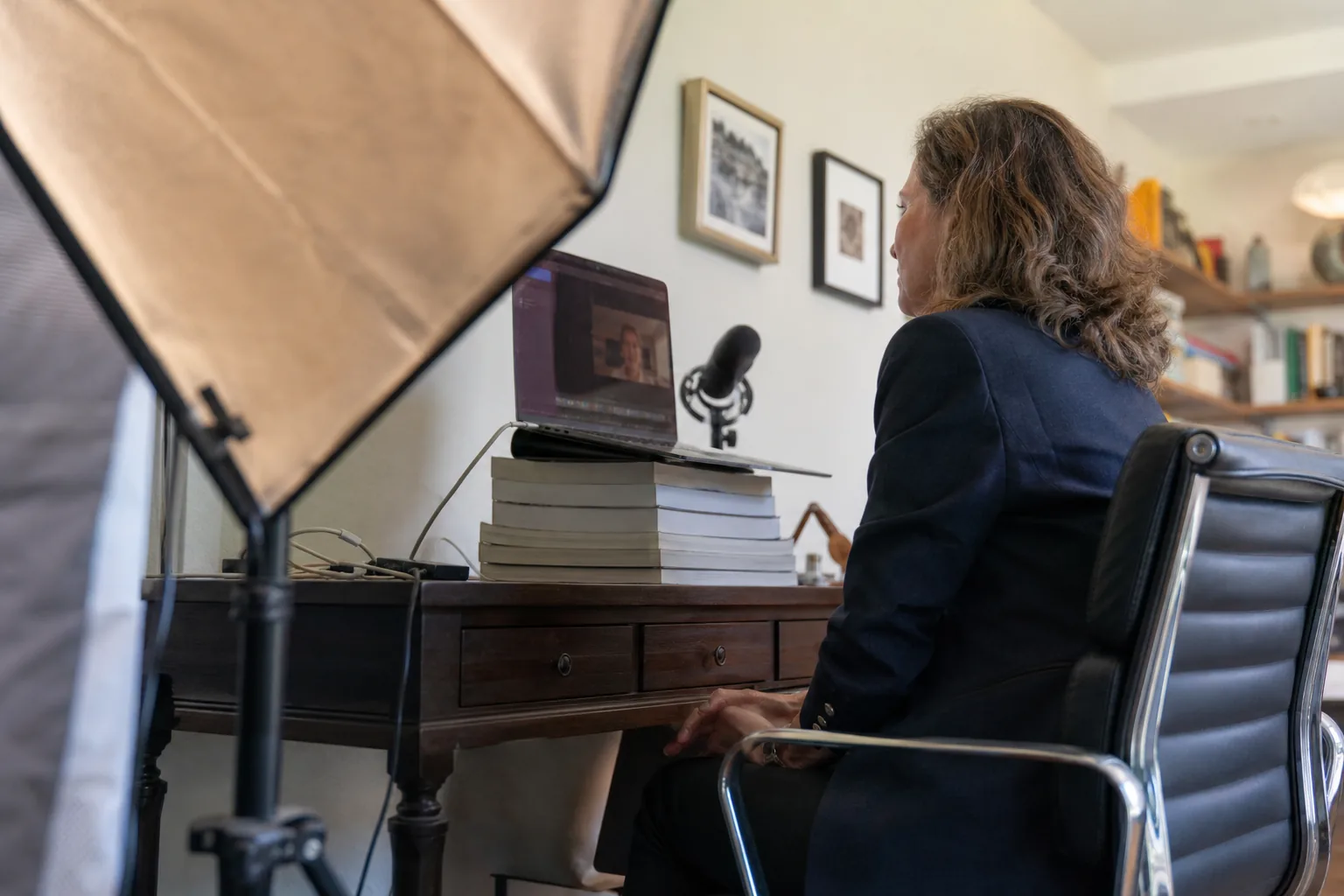
To create an AI avatar of yourself that people actually want to watch, you need two minutes of good footage and a little preparation. This guide covers the camera setup, lighting, wardrobe and delivery for the training recording, then the scripts that work best once your avatar exists, so your business videos look like you on your best recording day, every time.
What an AI avatar of yourself really is
An AI avatar of yourself is a video model built from your own footage. You record a short training video once, and from then on you type a script and receive a video in which you present it, with your face, your gestures and your voice. It is not a cartoon, a stock presenter or a filter; it is a model of you, in the framing and background you recorded.
That last point shapes everything that follows. The avatar inherits the training recording. If the light was flat and grey, every future video is flat and grey. If the framing cut off your hands, your hands never appear. The two minutes you record are the master copy for months of video, so they deserve the care you would give a real shoot.
Framing that works for most business video
For training, sales and product updates the classic framing is a medium close-up: the top of the frame a little above your head, the bottom around the middle of your chest. It reads as personal without feeling cramped, and it leaves room for captions at the bottom.
- Put the camera at eye level. A laptop on a desk looks up your nose, so raise it on a stack of books or use a phone on a small tripod.
- Look into the lens, not at the screen. Put a small sticker next to the lens if your eyes drift.
- Leave a little space above your head and to both sides; tight crops make later scene layouts harder.
- Record in landscape for most business use. If you mainly publish vertical social clips, record a second clone in portrait rather than cropping later.
- Keep the background simple and real: a tidy bookshelf, a plant, a plain wall with some depth. Avoid moving things such as screens, windows with traffic or people walking past.
Lighting that flatters without a studio
Light is the single biggest difference between an avatar that looks professional and one that looks like a webcam call. You do not need studio equipment, only a large, soft source in front of you.
- Face a window during the day, with the window slightly to one side. Soft daylight from the front is hard to beat.
- If you record in the evening, use one or two soft lights at roughly 45 degrees in front of you, at or slightly above eye level.
- Avoid a bright window behind you. The camera exposes for the window and turns your face dark.
- Turn off overhead lights that throw shadows into your eyes, and avoid mixing warm lamps with cold daylight on your face.
- Check for glare on glasses. Tilting the glasses down slightly or moving the light to the side usually solves it.
What to wear in the training recording
Your avatar wears what you wear in the training video, so dress for the content you plan to make most often. A consultant who records onboarding for clients will want a different look from a founder who posts product updates.
- Solid, mid-tone colors work best. Navy, burgundy, olive and soft grey look good on almost any camera.
- Avoid fine stripes, small checks and busy patterns, which flicker on video.
- Avoid pure white and pure black, which lose detail, and avoid green if you ever plan to replace the background.
- Skip noisy jewelry and anything that rustles near a microphone.
- Keep your hair and accessories the way you want them to look for the next few months. If your look changes a lot, record a fresh clone.
On Pro you can keep two clones, on Business five, which makes room for a formal and a casual version of yourself.
How the 2 minute recording works
In IdClone you record the 2 minute training video with your phone or webcam, plus a 60 second voice sample. The aim of the training video is to show the model how you look and move while speaking naturally.
- Talk the whole time. Read a prepared text or speak about your work; what matters is steady, natural speech.
- Keep your head and shoulders in roughly the same place. Small nods and normal hand gestures are good; leaning out of frame is not.
- Close your mouth fully between sentences now and then. Natural pauses help lip sync later.
- Keep your hands below chin height so they do not cover your mouth.
- Do not cut the take. If you stumble, pause and carry on; one continuous take works better than stitched pieces.
After the recording you pass a live selfie check and read a spoken consent statement with a one time phrase. That consent is matched to the training footage, so the clone can only be built by the person in it. No identity documents are uploaded or processed. Teammates who need their own avatar receive their own invite and record their own footage and consent.
Scripts that work well for business video
Once your avatar exists, scripts do the heavy lifting. Writing for an avatar is writing for the ear, so short sentences and a clear structure beat dense paragraphs.
- Training update. Open with what changed, give the two or three steps people need to take, close with where to find help. Ninety seconds is plenty for most updates.
- Sales follow-up. Name the problem you discussed, one specific next step, and a short sign-off. Keep it under a minute.
- Product announcement. One feature per video, what it does for the viewer, how to find it. Changelog videos work best weekly and short.
- Social clip. One idea, stated in the first sentence, then two supporting points. Vertical clones suit this format.
- Customer support explainer. Answer one question per video, in the customer's language, and link it from the help article.
The editor splits your script into scenes automatically, and the teleprompter-style view shows how each scene reads at your pace. If a sentence feels long when you read it aloud, it will feel long in the video too.
Make every video look like your company
On Pro and above the brand kit applies your logo, colors, intro, outro and caption style to every render, so videos from different people on the team still look like one company. On Business, roles and approvals let a reviewer sign off before anything is published, which is how teams keep control when several people create videos from their avatars. Every export can carry a visible AI-generated label and content credentials metadata. The AI avatar video generator page shows the full set of controls.
How many video minutes your plan includes
Avatar video minutes are counted per month: 8 on Starter, 25 on Pro, 90 on Business and 300 on Enterprise. A founder posting four one minute updates a week fits in Pro. A training team publishing modules in several languages usually needs Business, because translated versions count their length against video minutes too. Prices start at $49 a month, or $24 a month billed yearly, and every plan is listed on pricing.
Questions and answers
How long does it take to create an AI avatar of yourself?
The recording itself is a 2 minute training video and a 60 second voice sample, followed by the live check and the spoken consent statement. Prepare the room and the light first and the whole session fits into a short break.
Can I record with my phone?
Yes. A recent phone on a small tripod at eye level, facing soft light, records footage that works well for a clone.
Can I change my outfit later?
The avatar keeps the look from its training recording. To change it, record another clone; Pro includes two clones and Business five.
Will viewers know the video is generated?
Every export can carry a visible AI-generated label and content credentials metadata, and we recommend telling your audience. See consent and safety for how this works.